Customizing Your Agent
Fine-tune how your AI agent sounds, what it says, and how it behaves.
Editing Your Agent
- Go to Dashboard > Agents
- Click on the agent you want to edit
- Make your changes
- Click Save
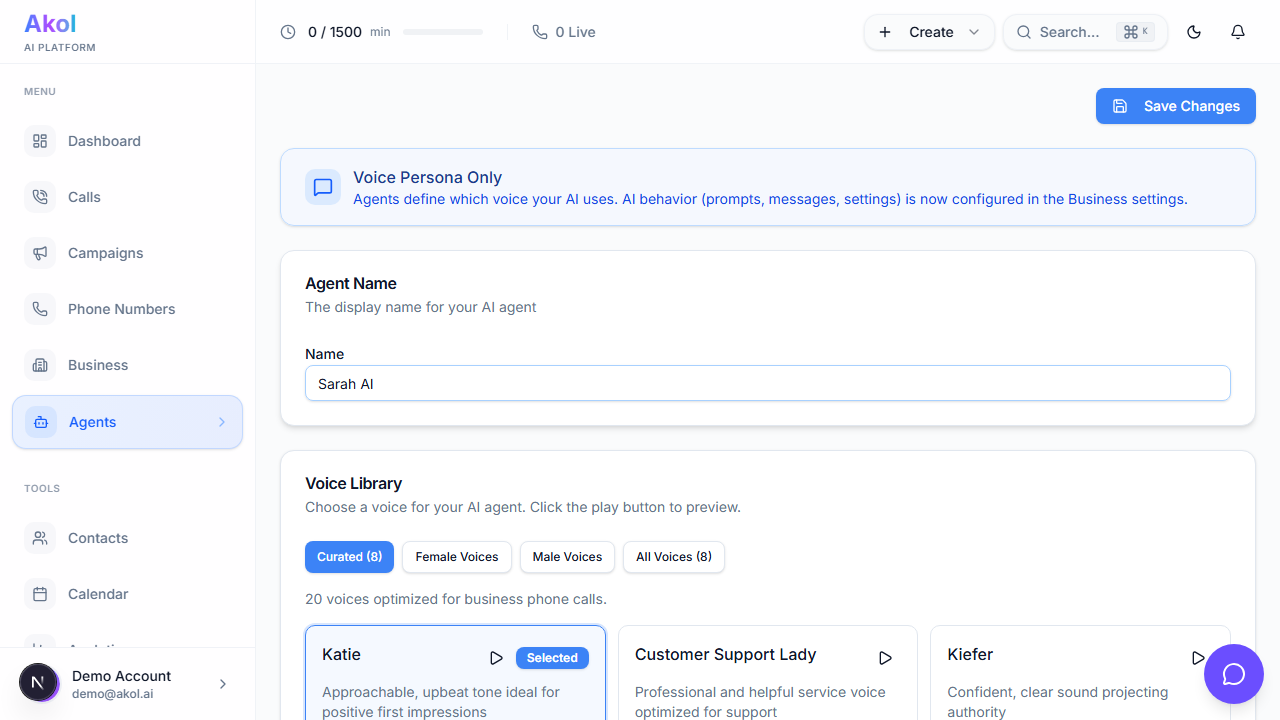
Voice Settings
Changing the Voice
To switch to a different voice:
- Click on the voice selection area
- Browse and preview available voices
- Select a new voice
- Save your changes
Adjusting Speed
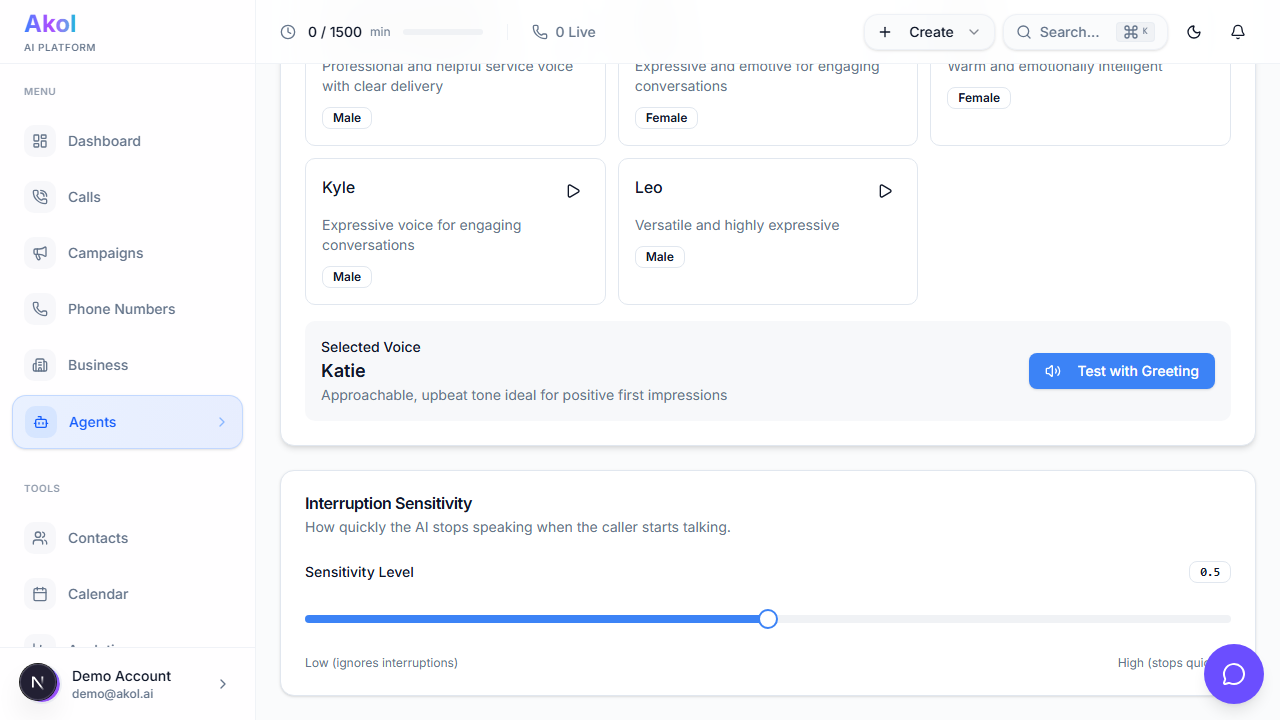
Use the speaking speed slider to control pace:
- Slower — Better for detailed information (pricing, addresses)
- Normal (1.0x) — Best for most conversations
- Faster — Good for simple, quick interactions
Listen to a few test calls after changing the voice or speed. What sounds good to you might sound different on the phone.
Writing a Great Greeting
Your greeting is the first thing callers hear. Make it natural and include your business name:
Good greetings:
“Hi, thanks for calling Smith Plumbing! This is Sarah, how can I help you today?”
“Good morning, you’ve reached Johnson HVAC. This is Alex. What can I do for you?”
“Thanks for calling City Electric! How can I help?”
Tips for greetings:
- Keep it under 2 sentences
- Always include your business name
- Sound warm and welcoming
- End with an open question
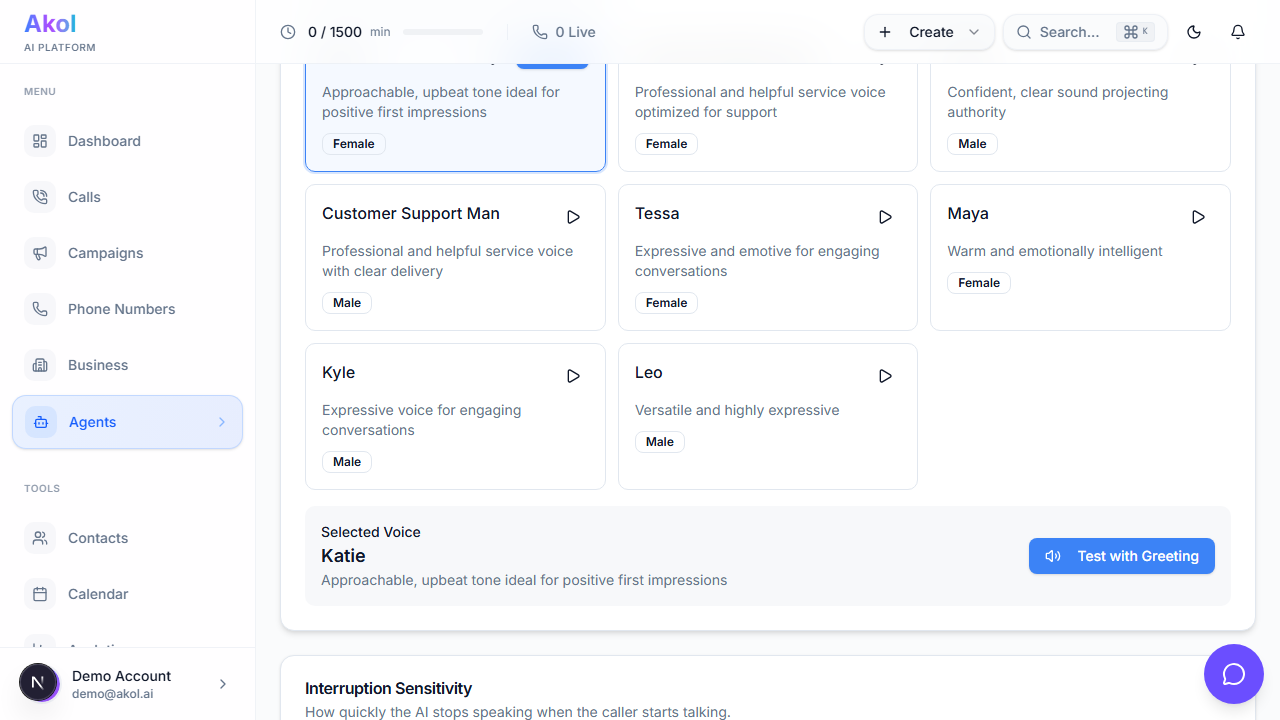
Agent Instructions
Instructions for how your agent behaves are configured at the business level, not on the agent itself. Your agent is a voice persona — the business profile, services, FAQs, and knowledge base provide the information your agent uses during calls.
To update what your agent knows and how it behaves:
- Go to Dashboard > Business
- Click on your business
- Edit the relevant tabs (Profile, Operations, Knowledge, Tools, etc.)
Learn more about setting up your business →
Deleting an Agent
If you no longer need an agent:
- Go to Dashboard > Agents
- Click the menu icon on the agent
- Select Delete
- Confirm the deletion
Deleting an agent is permanent. Any phone numbers assigned to it will need to be reassigned.