Setting Up Your Business
Your business profile tells your AI agent everything it needs to know to answer calls — your name, hours, services, and pricing.
The Setup Wizard
When you create a new business, Akol walks you through a step-by-step wizard. It takes about 5 minutes.
Business Basics
Enter your core business information:
- Business Name — e.g., “Sunset Family Dental” or “Johnson & Associates Law Firm” (required)
- Industry — Select from the dropdown (Healthcare, Legal, Real Estate, Restaurant, Home Services, etc.)
- Website — Optional, but if you enter one, click Import to automatically pull your business info from your site
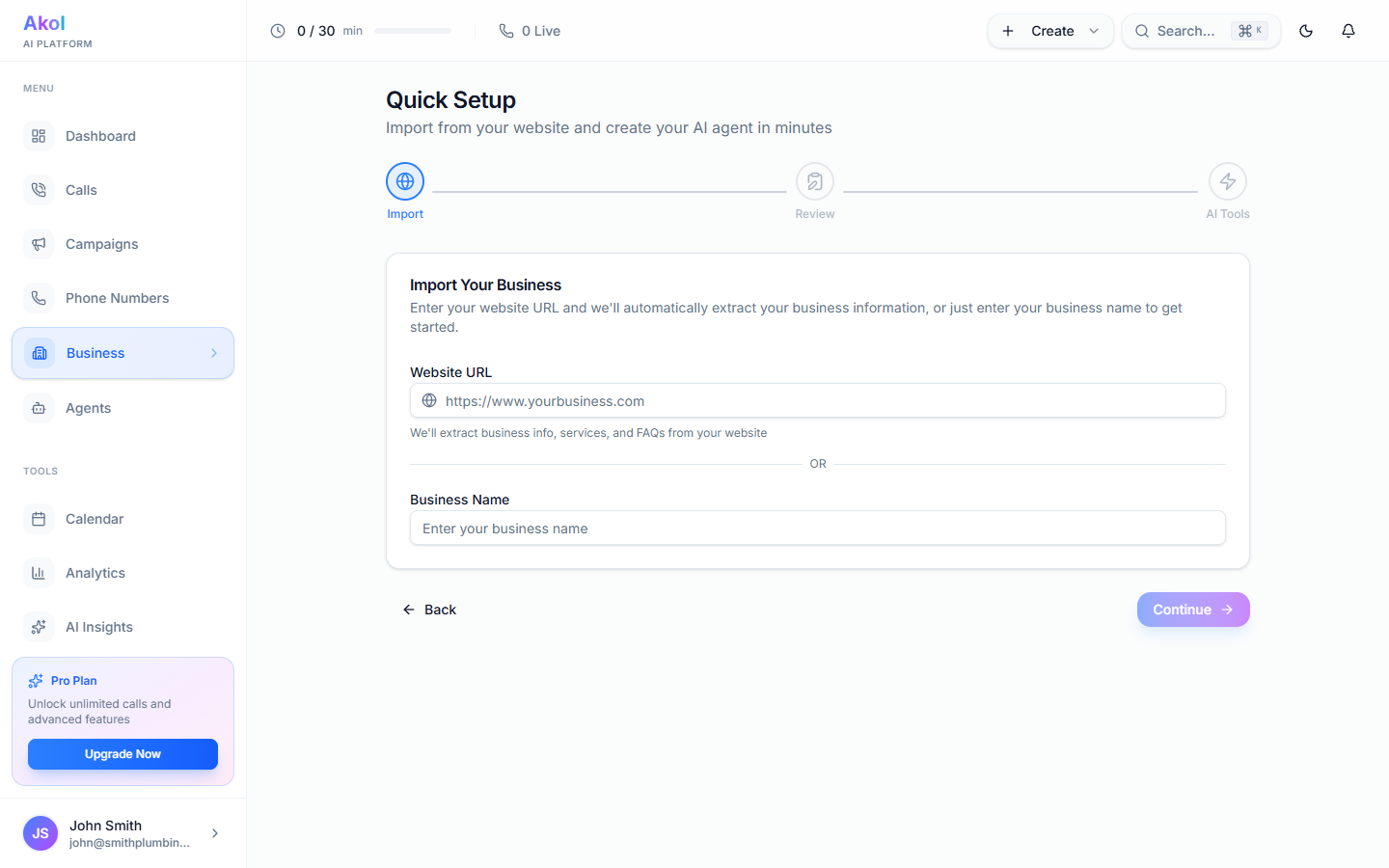
If you have a website, use the Import feature. Akol scans your site and fills in your services, hours, FAQs, and more — saving you time on the remaining steps.
Location & Hours
Tell Akol where you are and when you’re open:
- Address — Your business address
- Phone — Your current business phone number
- Email — Your business email
- Business Hours — Set your open and close times for each day of the week. Check “Closed” for days you’re not open.
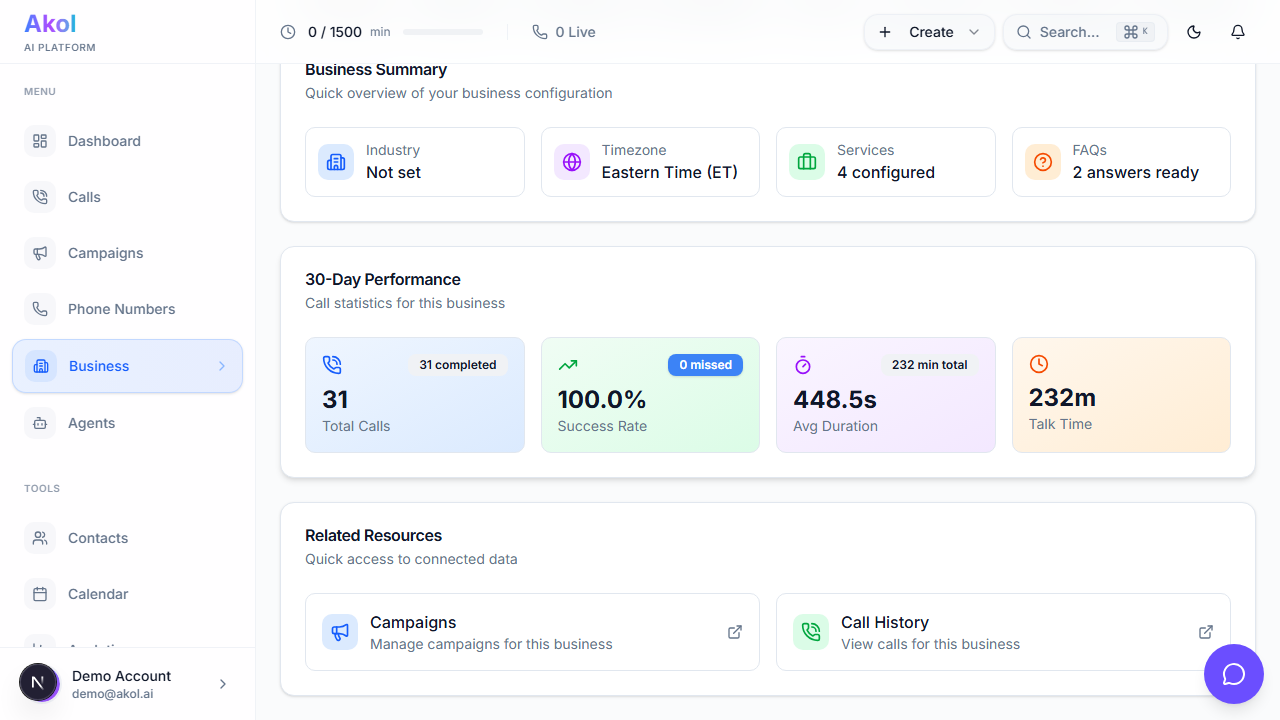
Your AI agent uses these hours to tell callers when you’re available. For example: “We’re open Monday through Friday, 8 AM to 6 PM.”
Services
Add the services you offer:
- Service Name — e.g., “Drain Cleaning”
- Description — Brief description of the service
- Price — Starting price or price range
Add as many services as you want. Your AI agent will use these to answer pricing questions.
Examples by industry:
| Industry | Service | Price |
|---|---|---|
| Dental office | Teeth Cleaning | Starting at $120 |
| Law firm | Initial Consultation | Free / $150 |
| Plumber | Drain Cleaning | Starting at $150 |
| Salon | Haircut & Style | Starting at $45 |
Policies (Optional)
Add any important policies your agent should know about:
- Cancellation policy — e.g., “24-hour cancellation notice required”
- Payment policy — e.g., “We accept cash, check, and all major credit cards”
- Booking policy — e.g., “A $50 deposit is required for scheduled appointments”
FAQs
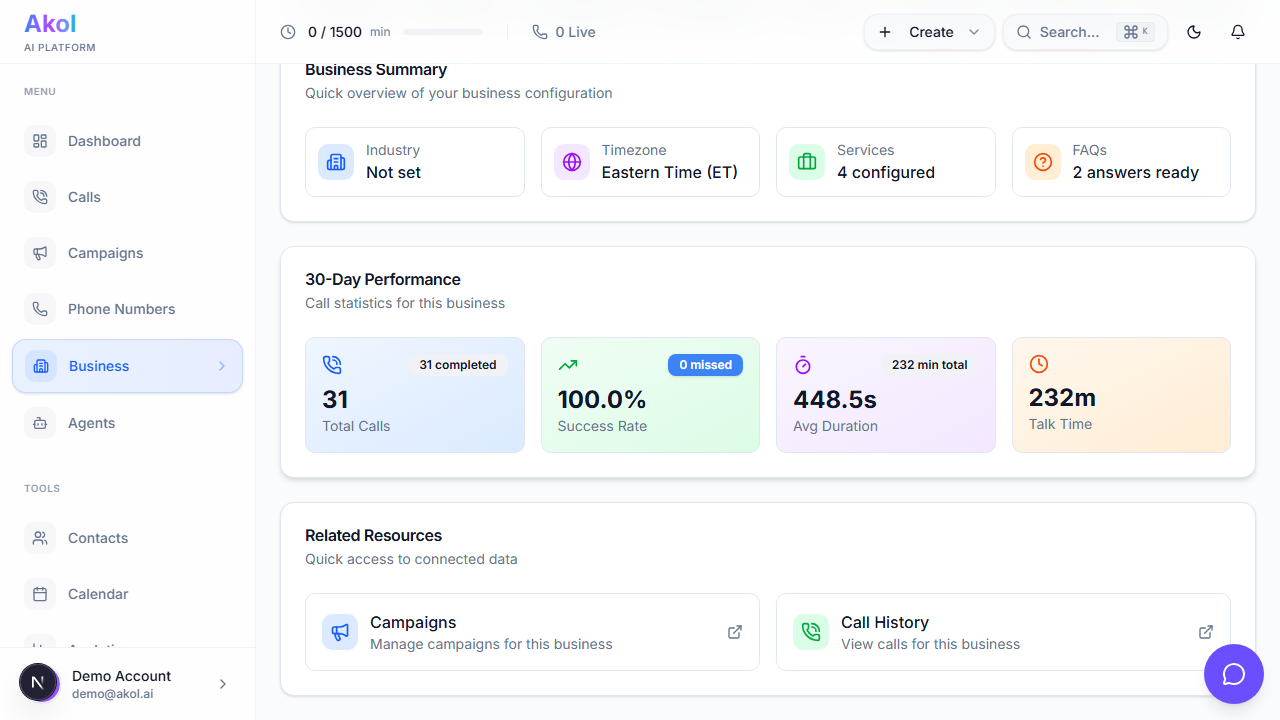
Add questions your customers commonly ask. Akol can pre-load industry-specific FAQs for you — just click the Load FAQs button.
Example FAQs:
- “Do you accept new patients/clients?” → “Yes, we’re currently accepting new patients.”
- “What are your hours?” → “We’re open Monday through Friday, 9 AM to 6 PM.”
- “Do you offer free consultations?” → “Yes, we offer a free initial consultation.”
Knowledge Base
Upload documents that your AI agent can reference during calls — PDFs, Word documents, or text files. This is useful for:
- Detailed service catalogs
- Policy documents
- Training materials
- Price lists
Your agent uses this information to answer questions more accurately.
AI Tools
Configure what actions your AI agent can take during calls:
- Book Appointments — Let the agent schedule appointments
- Send SMS — Send text confirmations to callers
- CRM Integration — Log call details to your CRM
- Notifications — Send you alerts after calls
Transfer
Set up call transfer rules:
- Enable/Disable Transfers — Master toggle to turn call transfers on or off
- Departments — Add departments with phone numbers and keywords so your agent routes callers to the right team
- Hold Music — Choose music callers hear while waiting during a transfer
Learn more about Call Transfers →
Test & Create
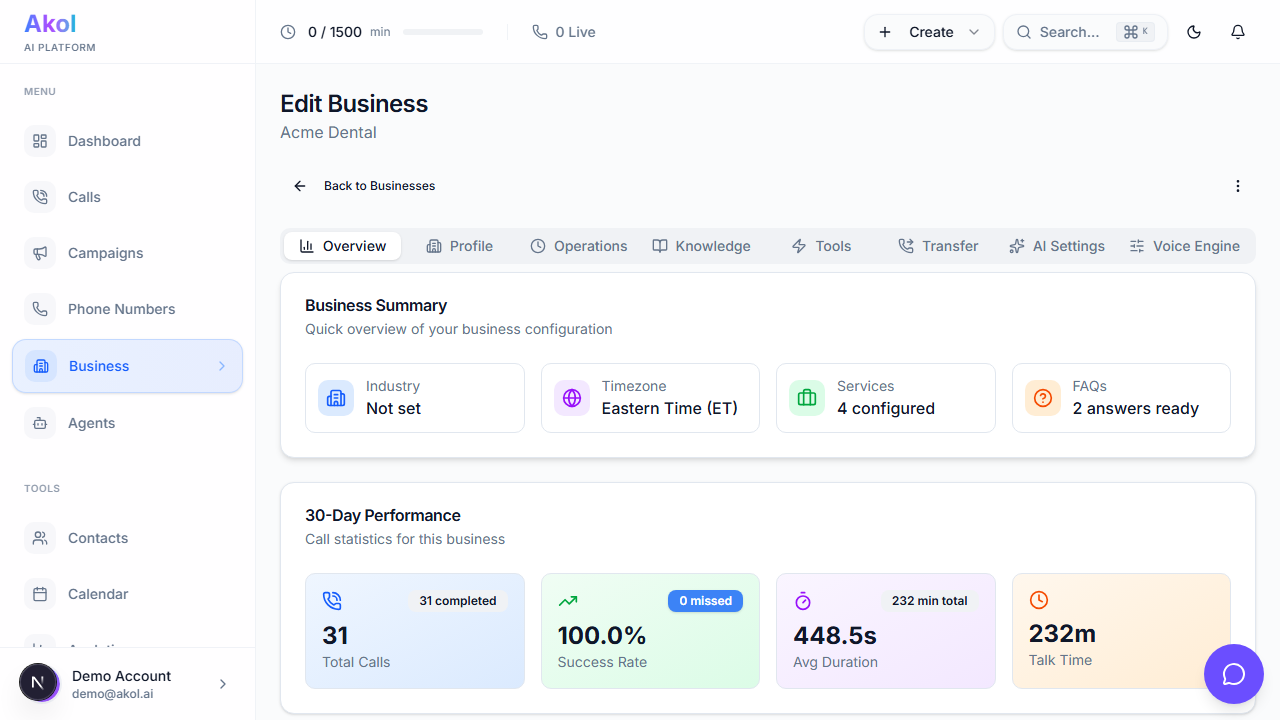
Review your setup with an AI-powered check, then create your business. You can also test your agent before going live.
Tips for a Great Business Profile
- Be specific about services and pricing — The more detail you add, the better your agent can answer questions
- Include your most common FAQs — Think about what customers ask you every day
- Keep hours up to date — Your agent tells callers your hours, so make sure they’re accurate
- Upload reference documents — The Knowledge Base helps your agent answer detailed questions
- Add policies — If you have a cancellation or payment policy, add it so your agent can communicate it
Next Step
Your business profile is set up. Now let’s create your AI agent →