Integrations
Connect Akol to your favorite tools so your AI agent can book appointments, send notifications, and sync customer data automatically.
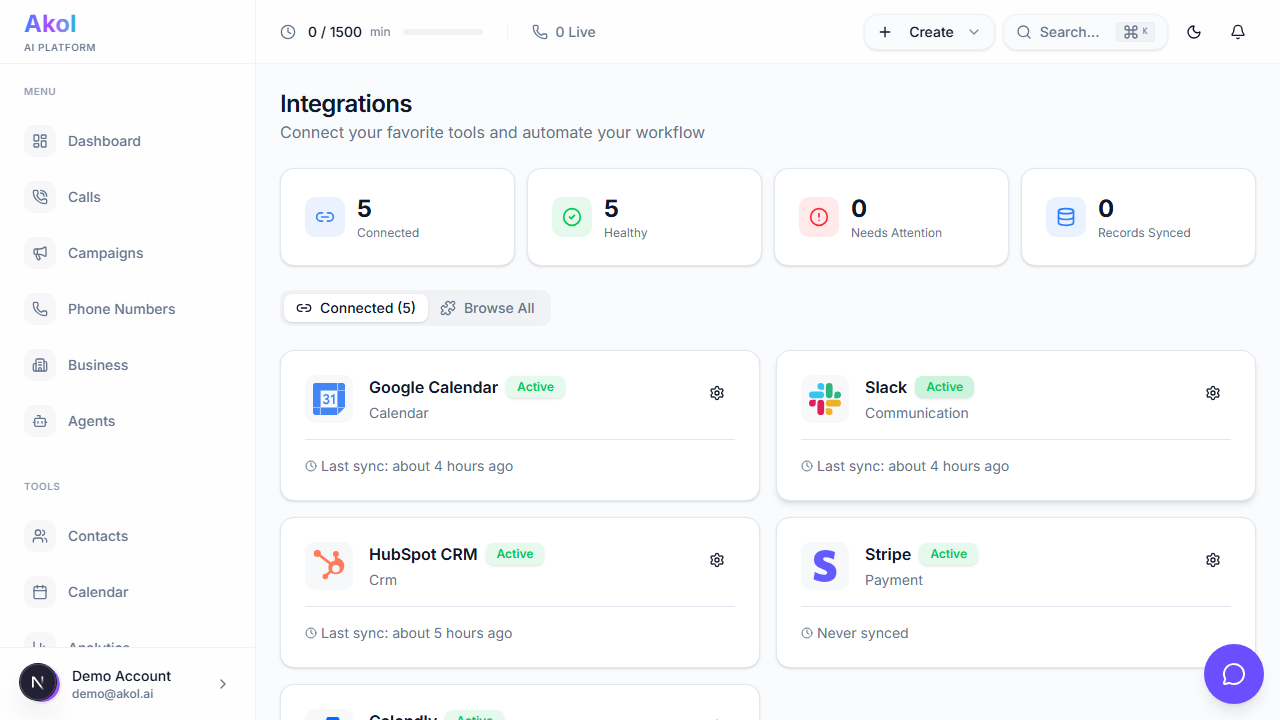
Available Integrations
Calendar
Let your AI agent book appointments directly on your calendar during phone calls.
| Integration | What It Does |
|---|---|
| Google Calendar | Check availability and book appointments on your Google Calendar |
| Outlook Calendar | Check availability and book appointments on your Outlook Calendar |
| Calendly | Connect your Calendly scheduling links |
| Cal.com | Connect your Cal.com scheduling |
CRM
Automatically save customer information and call details to your CRM.
| Integration | What It Does |
|---|---|
| HubSpot | Sync contacts, log calls, and create deals |
| Salesforce | Sync contacts, log call activities, and manage leads |
| Pipedrive | Sync contacts, update deals, and log activities |
| Zoho CRM | Create leads and contacts, log calls |
| Close CRM | Manage leads and log calls |
| Follow Up Boss | Sync leads for real estate businesses |
Communication
Get notified after every call so you never miss important information.
| Integration | What It Does |
|---|---|
| Slack | Get call summaries and alerts in your Slack channels |
| Discord | Receive notifications in your Discord server |
| Microsoft Teams | Get call alerts in your Teams channels |
| SendGrid | Send email notifications and confirmations |
| Send WhatsApp messages to customers |
Telephony
Connect your existing telephony infrastructure.
| Integration | What It Does |
|---|---|
| Twilio | Use Twilio for voice and messaging |
| Telnyx | Use Telnyx for voice and messaging infrastructure |
Payment
Take payments and send invoices during calls.
| Integration | What It Does |
|---|---|
| Stripe | Create payment links, process refunds, and send receipts |
| Square | Connect appointments with payments (coming soon) |
Productivity
Connect Akol to thousands of other apps through automation platforms and productivity tools.
| Integration | What It Does |
|---|---|
| Zapier | Connect to 5,000+ apps (Google Sheets, email, etc.) |
| Make | Build custom workflows with multiple steps |
| n8n | Self-hosted workflow automation |
| Notion | Create records and pages |
| Clio | Sync with your legal practice management (coming soon) |
How to Connect an Integration
- Go to Dashboard > Integrations
- Find the integration you want and click Connect
- Follow the prompts to sign in and grant access
- Configure any settings (like which calendar to use)
- You’re done — the integration is now active
Most integrations take less than a minute to set up. Just click Connect and follow the steps.
Integration Limits
All plans — including the Free Plan — include unlimited integrations.
Troubleshooting
Integration Won’t Connect
- Make sure popups aren’t blocked in your browser
- Try in an incognito/private window
- Make sure you click Allow when asked to grant access
Integration Stopped Working
- Go to Dashboard > Integrations and check the status
- Click Disconnect, then Connect again
- This refreshes the connection and usually fixes the issue
Data Not Syncing
- Click the Sync Now button on the integration
- Wait a few minutes — some syncs take time
- If it still doesn’t work, disconnect and reconnect
Need help with a specific integration? Contact us at support@akol.ai.