HubSpot
Connect HubSpot so your AI agent automatically saves customer information and logs call details to your CRM after every call.
What It Does
- Saves new contacts — When a new customer calls, Akol creates a contact in HubSpot
- Logs every call — Call duration, summary, and outcome are saved on the contact record
- Updates existing contacts — If the caller already exists in HubSpot, Akol updates their record
- Creates deals — Optionally create deals for qualified leads
How to Connect
Open Integrations
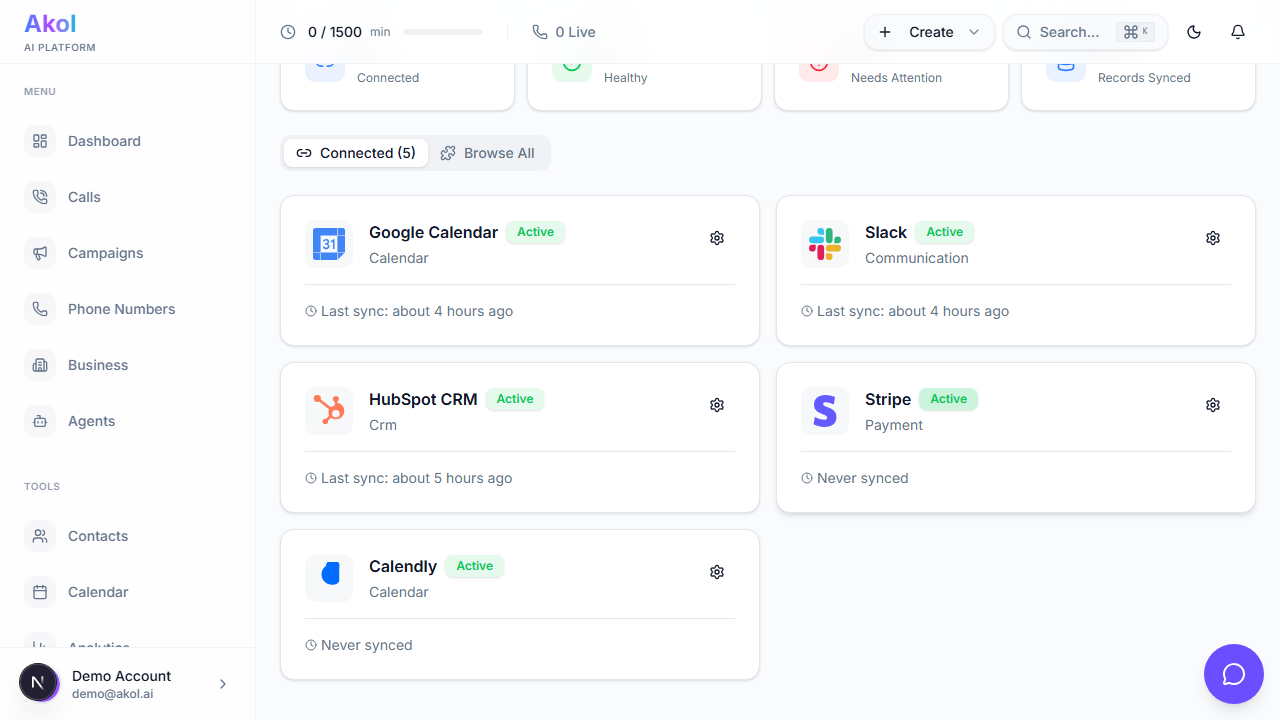
Go to Dashboard > Integrations and find HubSpot.
Click Connect
Click the Connect button. You’ll be redirected to HubSpot.
Select Your Account
If you have multiple HubSpot accounts, select the one you want to connect.
Grant Access
Click Allow to let Akol access your contacts, companies, and deals.
You’re Connected
You’ll be redirected back to Akol. The integration is now active.

What Happens After a Call
When a call ends, Akol automatically:
- Looks for the caller in HubSpot — by phone number
- Creates or updates the contact — name, phone, email (if collected during the call)
- Logs the call — with duration, a summary of what was discussed, and the outcome (e.g., “appointment booked”)
- Creates a deal (optional) — if the caller is a qualified lead
Settings
Configure what gets synced to HubSpot:
- Go to Dashboard > Integrations > HubSpot
- Click Settings
| Setting | What It Does | Default |
|---|---|---|
| Create contacts | Automatically create contacts for new callers | On |
| Log calls | Save call details on the contact record | On |
| Update existing | Update contact info if they already exist | On |
| Create deals | Create a deal for qualified leads | Off |
Troubleshooting
Contacts Not Being Created
- Check that Create contacts is turned on in settings
- Make sure the caller’s phone number was captured
- If the contact already exists, check the existing record — it may have been updated instead
Calls Not Showing in HubSpot
- Check that Log calls is turned on in settings
- Go to the contact in HubSpot and look in the Activity timeline
- Try disconnecting and reconnecting the integration
Duplicate Contacts
Akol matches contacts by phone number. If you’re seeing duplicates, make sure your existing HubSpot contacts use the full phone format (e.g., +15551234567).
Connection Stopped Working
- Go to Dashboard > Integrations > HubSpot
- Click Disconnect
- Click Connect again and re-authorize
Tips
- Keep phone numbers consistent — Use the same format in HubSpot that callers use
- Review call logs — Check HubSpot regularly to see what your AI agent is logging
- Set up HubSpot workflows — Create follow-up tasks automatically when Akol logs a call
Last updated on