Dashboard Overview
When you log into Akol, you land on your dashboard. This is your home base — everything you need to run your AI phone agent is right here.
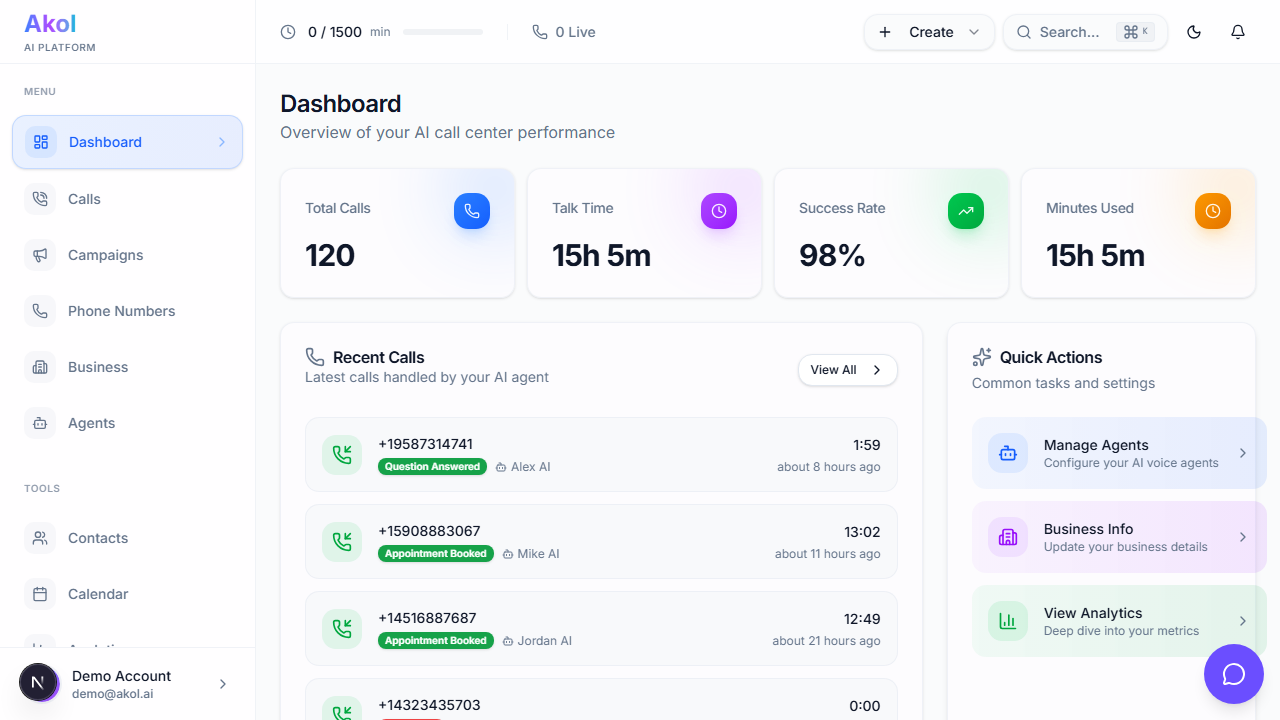
What You’ll See
Quick Stats
At the top of your dashboard, you’ll see your key numbers at a glance:
| Stat | What It Tells You |
|---|---|
| Total Calls | How many calls your agent has handled |
| Talk Time | Total time spent on calls |
| Success Rate | Percentage of calls with a positive outcome |
| Minutes Used | How many of your plan minutes you’ve consumed |
Each stat shows a percentage change from the previous period so you can spot trends.

Usage Warning
If you’re approaching your plan’s minute limit, you’ll see a usage warning bar. This helps you decide if it’s time to upgrade before you run out of minutes.
Onboarding Banner
New to Akol? You’ll see a banner with suggested next steps to help you get set up — like creating your first agent, setting up your business profile, or getting a phone number. The banner disappears once you’ve completed onboarding.
Recent Calls
Below the stats, you’ll see your most recent calls with:
- Direction — Inbound or outbound icon
- Phone number — Who called
- Duration — How long the call lasted
- Outcome — What happened (appointment booked, question answered, etc.)
- Agent — Which AI agent handled the call
Click on any call to see the full details, transcript, and recording.
Learn more about viewing calls →
Quick Actions
A panel with shortcuts to common tasks:
- Manage Agents — Jump to your agents list
- Business Info — Edit your business profile
- View Analytics — See performance charts and trends
Navigation
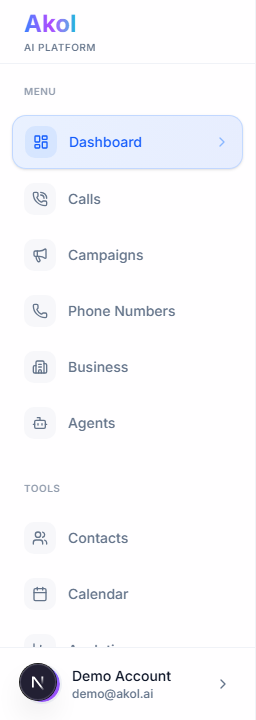
The sidebar on the left is your main menu, split into two sections:
Menu
| Menu Item | What It Does |
|---|---|
| Dashboard | Your main overview (you’re here) |
| Calls | See all calls, transcripts, and recordings |
| Campaigns | Create and manage calling campaigns |
| Phone Numbers | Manage your phone numbers |
| Business | Your business profiles |
| Agents | Create and manage your AI phone agents |
Tools
| Menu Item | What It Does |
|---|---|
| Contacts | Your directory of all phone numbers that have interacted with your business |
| Calendar | View and manage scheduled appointments |
| Analytics | Charts and reports about your calls |
| AI Insights | AI-generated recommendations to improve performance |
| Integrations | Connect your calendar, CRM, and more |
Settings, Billing, and Help & Support are accessible from the user menu at the bottom of the sidebar.
Tips
- Check your dashboard daily — Especially during your first week, to see how your agent is performing
- Click into recent calls — Read transcripts to see how your agent handles real conversations
- Watch your success rate — If it drops, review recent calls to find out what’s going wrong
- Keep an eye on minutes used — Upgrade your plan before running out to avoid interruptions