Making a Test Call
Time to hear your AI agent in action. Making a test call lets you experience exactly what your customers will hear.
Two Ways to Test
Option A: Test from the Dashboard
Go to Your Agent
Navigate to Dashboard > Agents and click on your agent.
Click Test Call
Click the Test Call button.
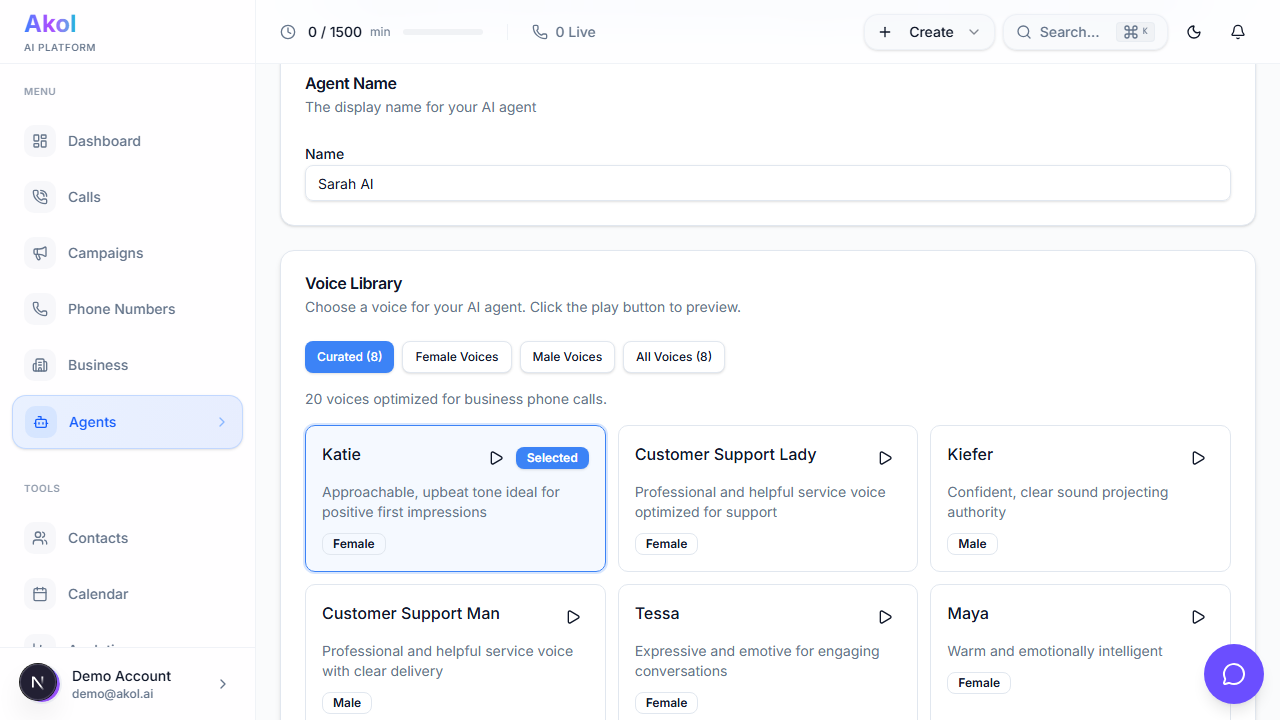
Enter Your Phone Number
Type in the phone number where you want to receive the test call (your mobile works great).
Answer the Call
Your phone will ring within a few seconds. Pick up and talk to your AI agent.
Option B: Call Your Number Directly
Just grab your phone and dial the Akol phone number you purchased. Your AI agent will answer.
What to Try During Your Test Call
Run through these scenarios to make sure your agent handles them well:
Test the Greeting
Does the agent introduce itself naturally? Does it say your business name?
What to listen for:
“Hi, thanks for calling Smith Plumbing! This is Sarah, how can I help you today?”
Ask About Your Hours
Try: “What are your business hours?”
Your agent should answer with the hours you set in your business profile.
Ask About Services and Pricing
Try: “How much does a drain cleaning cost?”
Your agent should reference the services and prices you added.
Try Booking an Appointment
Try: “I’d like to schedule an appointment for next Tuesday.”
If you’ve connected a calendar integration, the agent should check your availability and book the appointment. If not, it should take a message.
Ask Something Unexpected
Try: “Do you do commercial plumbing?” or “Can you help with my sprinkler system?”
See how your agent handles questions outside its knowledge. A good agent will say something like: “I’m not sure about that, but let me have someone from the team call you back.”
Test a Transfer
Try: “Can I speak to someone?” or “I need to talk to the owner.”
Your agent should offer to transfer the call or take a message.
Review Your Test Call
After the call, go to Dashboard > Calls to see the full details:
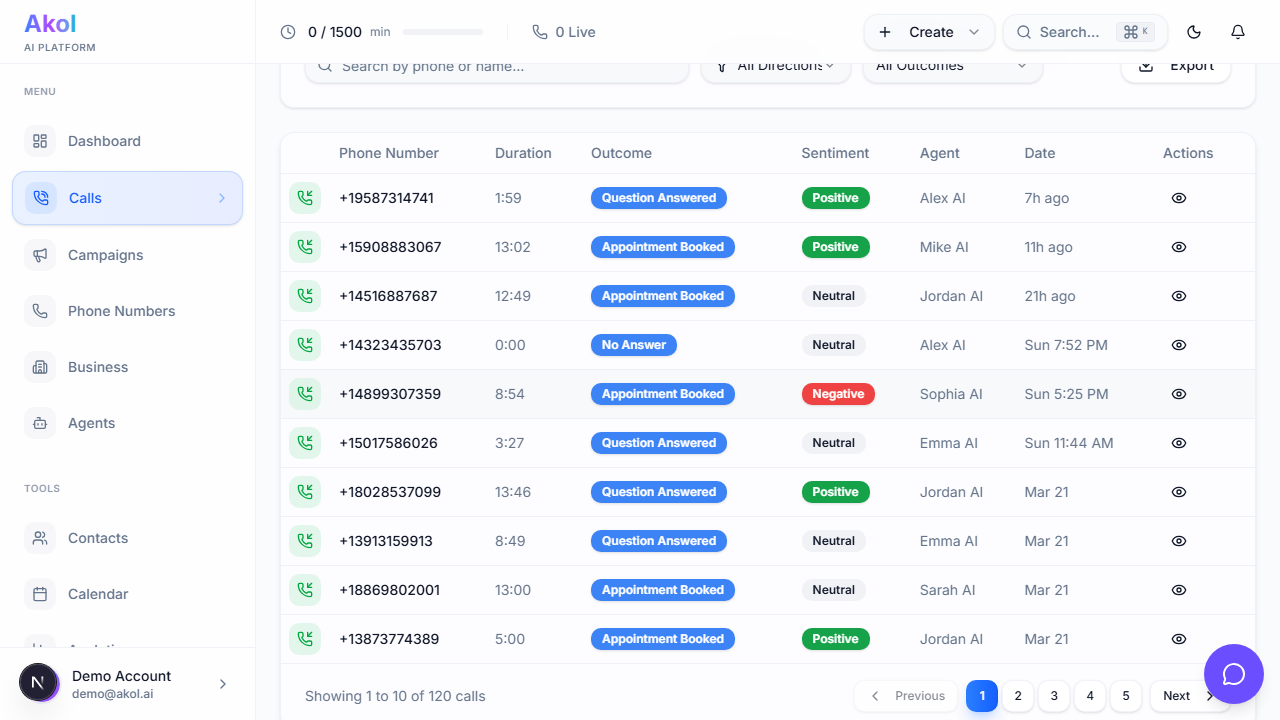
| What You’ll See | Description |
|---|---|
| Transcript | A written record of the entire conversation |
| Summary | A 2-3 sentence overview of what happened |
| Duration | How long the call lasted |
| Sentiment | Whether the conversation was positive, neutral, or negative |
| Outcome | What happened — message taken, appointment booked, etc. |
| Recording | Play back the audio to hear exactly how it sounded |
Improving Your Agent
Based on your test call, you’ll probably want to adjust a few things:
If the Agent Gives Wrong Information
Go to Dashboard > Business Profile and update the relevant details (hours, services, pricing).
If the Agent’s Tone Is Off
Go to Dashboard > Agents, click your agent, and update the description/instructions. Be specific about the tone you want:
- “Be warm and friendly, like you’re talking to a neighbor”
- “Be professional but not formal”
- “Keep responses short — one or two sentences”
If the Agent Doesn’t Know Something
Add more FAQs and services to your business profile. The more information your agent has, the better it handles calls.
Don’t worry about getting it perfect right away. Most businesses make 2-3 test calls and small adjustments before they’re happy with how the agent sounds.
Next Step
Happy with how your agent sounds? Let’s go live → and start taking real customer calls.