Settings
Manage your account, security, notifications, and preferences from the Settings page.
Accessing Settings
Click Settings in the sidebar, or click your profile picture in the top right.
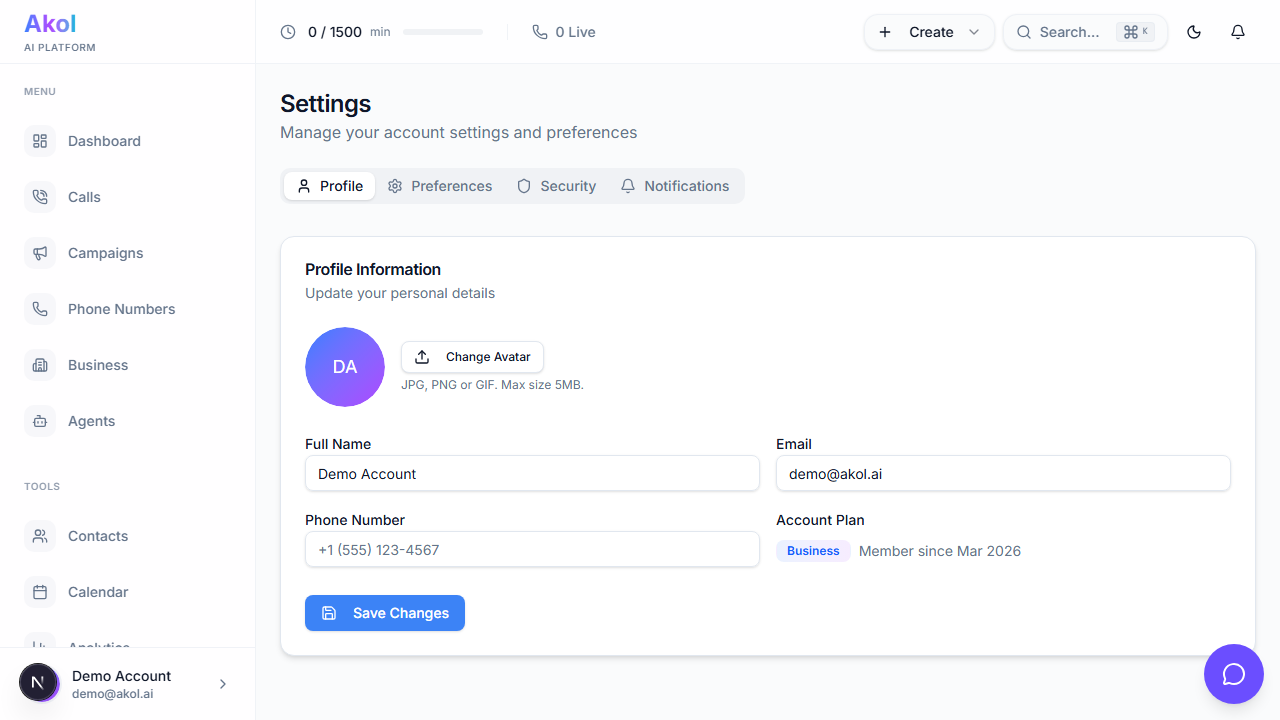
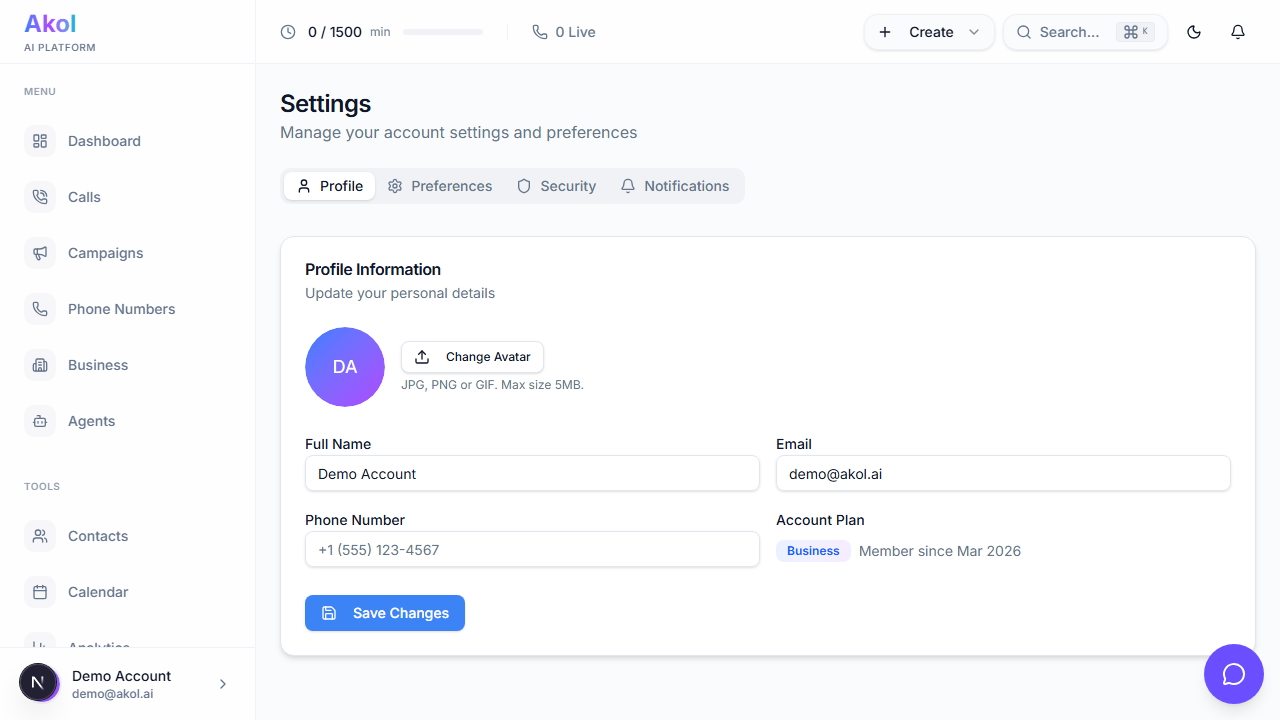
The settings page has multiple tabs. Here’s what each one covers.
Profile
Update your personal information:
- Avatar — Upload a profile photo (click the camera icon)
- Display Name — Your name as shown to team members
- Email — Your login email (read-only)
- Phone — Your phone number
- Timezone — Make sure call times display correctly for your area
- Language — Select your preferred language
- Company — Your company name
- Bio — A short description about yourself
Click Save when you’re done.
Security
Keep your account safe with these features:
Change Password
Update your password anytime:
- Enter your current password
- Enter your new password
- Confirm your new password
- Click Change Password
Two-Factor Authentication (2FA)
Add an extra layer of security to your login:
Click Enable 2FA
In the Security tab, click Set Up Two-Factor Authentication.
Scan the QR Code
Open your authenticator app (Google Authenticator, Authy, etc.) and scan the QR code. You can also enter the code manually.
Enter the Verification Code
Type the 6-digit code from your authenticator app to confirm setup.
Save Your Backup Codes
You’ll receive backup codes — download and store them safely. If you lose access to your authenticator app, these are your only way back in.
If you lose both your authenticator app and backup codes, you’ll need to contact support to regain access to your account.
Active Sessions
See everywhere you’re currently logged in:
- Device — Browser and operating system
- IP Address — Where the session is from
- Last Active — When the session was last used
You can sign out of individual sessions or click Sign Out All Other Sessions to revoke everything except your current session.
Login Activity
View a history of login attempts to your account:
- Timestamp, device, location, and whether the attempt succeeded or failed
This helps you spot unauthorized access attempts.
Privacy & Notifications
Email Notifications
Choose which emails you receive:
| Notification | Description |
|---|---|
| Call alerts | Get notified about new calls |
| Campaign updates | Progress updates on running campaigns |
| Integration alerts | Sync failures and connection issues |
| Billing notifications | Payment confirmations and usage warnings |
| Product updates | New features and improvements |
| Marketing emails | Tips, best practices, and offers |
Data & Privacy
- Analytics — Toggle anonymous usage analytics
- GDPR Data Export — Download all your data as a file
- Delete Account — Permanently delete your account and all data
Account deletion is permanent and cannot be undone. Export your data first if you need to keep records.
Connected Accounts
Link or unlink third-party accounts for faster sign-in:
- Google — Sign in with your Google account
- Microsoft — Sign in with your Microsoft account
- GitHub — Sign in with GitHub
Click Connect to link a new account, or Disconnect to unlink one. You’ll always be able to sign in with email and password.
Preferences
Customize your experience:
| Setting | Options |
|---|---|
| Theme | Light, Dark, or System (follows your OS) |
| Compact mode | Reduce spacing for a denser layout |
| Date format | Choose how dates appear |
| Time format | 12-hour or 24-hour clock |
Trusted Devices
When you log in with 2FA, you can choose to trust this device for 30 days. Trusted devices skip the 2FA step on future logins.
View and manage your trusted devices:
- Device name — Browser and OS
- IP Address — Where the device connected from
- Last used — When the device was last active
Click Revoke to remove a device, or Revoke All to clear all trusted devices.
Billing
Quick access to your subscription info:
- Current plan — Your active plan name
- Payment method — Card on file
- Next renewal — When your subscription renews
For full billing management, go to Dashboard > Billing.
Tips
- Enable 2FA — Protect your account, especially if multiple people have access
- Check login activity if you notice anything unusual
- Set your timezone so call times display correctly
- Review trusted devices periodically and revoke any you don’t recognize