Viewing Your Calls
See every call your AI agent handles — with transcripts, summaries, recordings, and more.
Call History
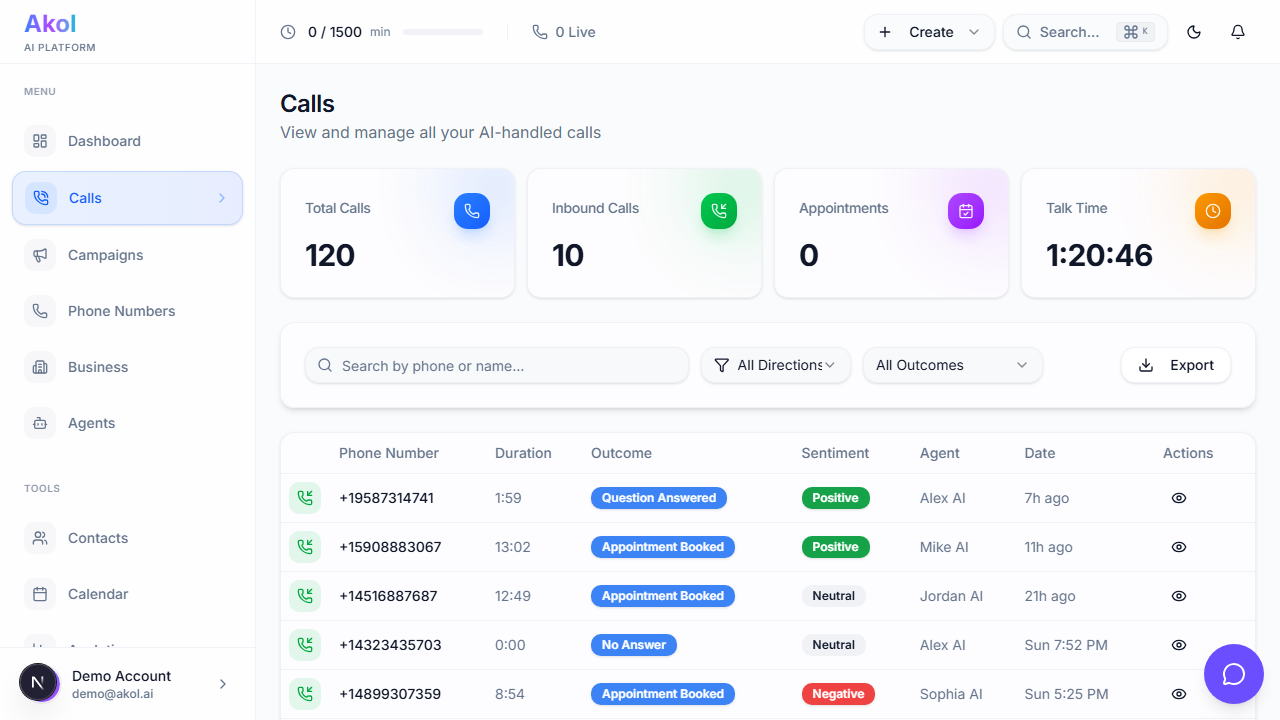
Go to Dashboard > Calls to see your call history.
What You’ll See
For each call in the list:
- Direction — Inbound or outbound
- Phone number — The caller’s number
- Duration — How long the call lasted
- Outcome — What happened (appointment booked, message taken, transferred, etc.)
- Sentiment — Positive, neutral, or negative
- Agent — Which AI agent handled the call
- Date — When the call happened
Stats at the Top
At the top of the page, you’ll see quick stats:
- Total Calls — All calls across all time
- Inbound Calls — Calls you received
- Appointments Booked — Calls that resulted in a booking
- Talk Time — Total time spent on calls
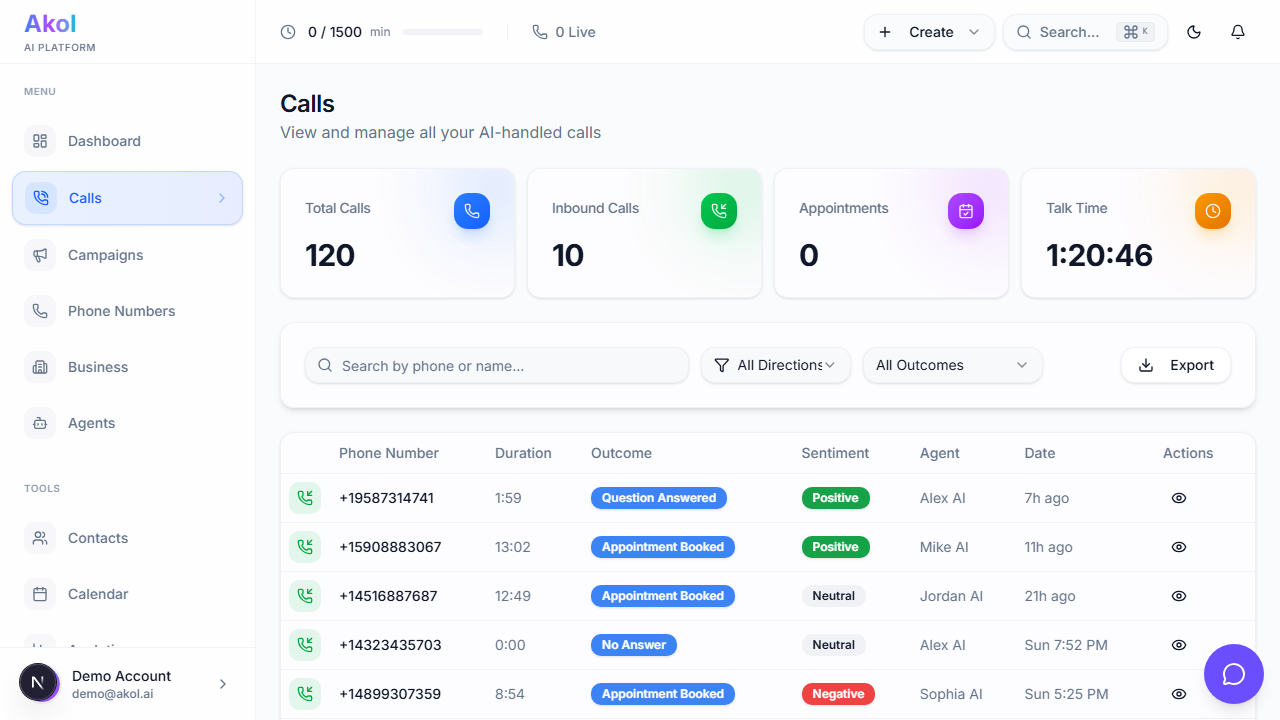
Filtering and Searching
Search
Type a phone number or caller name into the search box to find specific calls.
Filter by Direction
Click Inbound or Outbound to show only one type.
Filter by Outcome
Select a specific outcome to see only those calls:
- Appointment Booked
- Question Answered
- Transferred
- Voicemail
- No Answer
- Hung Up
Akol also generates AI-powered outcomes for deeper analysis:
- Successful — The call achieved its purpose
- Partial — Some goals met, but not all
- Callback Needed — The caller needs a follow-up
- Failed — The call didn’t achieve its goal
- Spam — Detected as a spam or robocall
- Dropped — Call was disconnected unexpectedly
Sentiment Badges
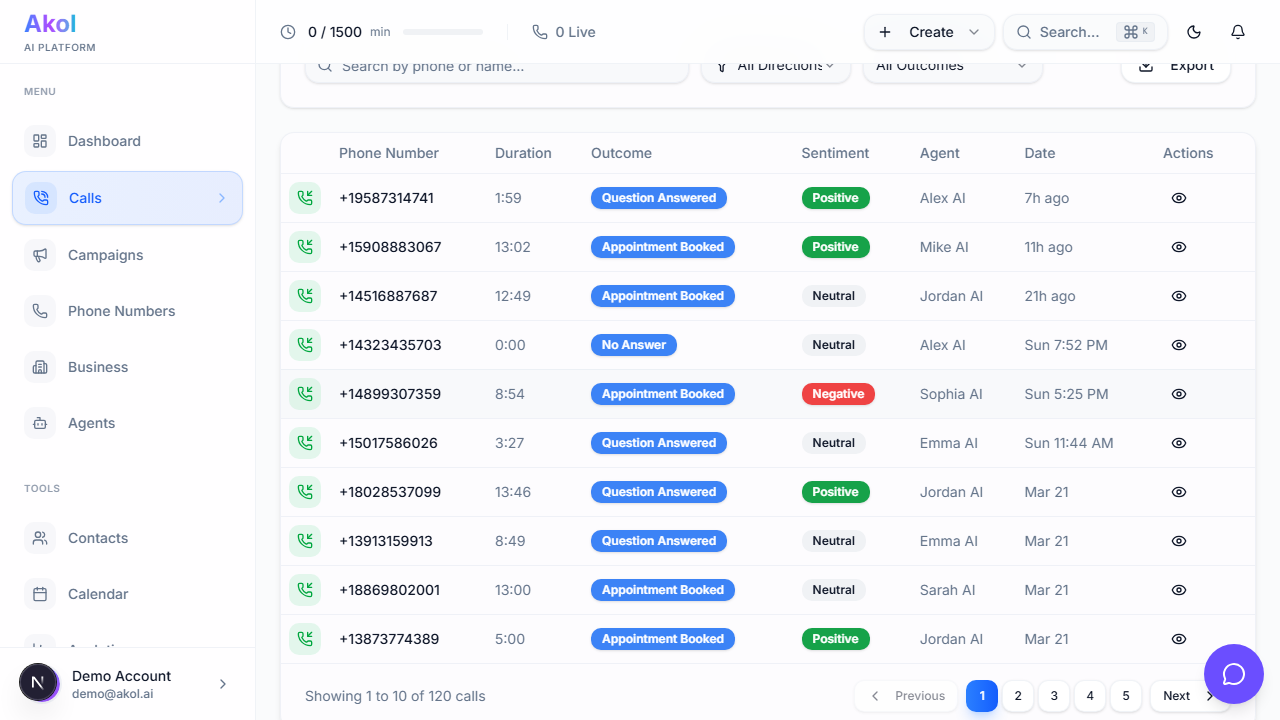
Each call shows a sentiment badge based on how the caller sounded:
- Positive (green) — Caller sounded happy or satisfied
- Neutral (gray) — Normal tone, no strong feeling
- Negative (red) — Caller sounded upset or frustrated
You can also see a lead score — how qualified the caller is as a potential customer (Hot, Warm, Lukewarm, or Cold).
Viewing Call Details
Click on any call to see the full details:
- Basic info — Caller number, duration, date, agent name
- Outcome and sentiment — Color-coded badges
- AI Summary — A 2-3 sentence overview of what happened
- Full transcript — Everything that was said, with speaker labels
- Recording — Play back the audio (if recording is enabled)
Learn more about transcripts → Learn more about recordings →
Exporting Calls
To download your call data:
- Click the Export button at the top of the call list
- Your calls will be downloaded as a spreadsheet (CSV file)
- Open it in Excel, Google Sheets, or any spreadsheet app
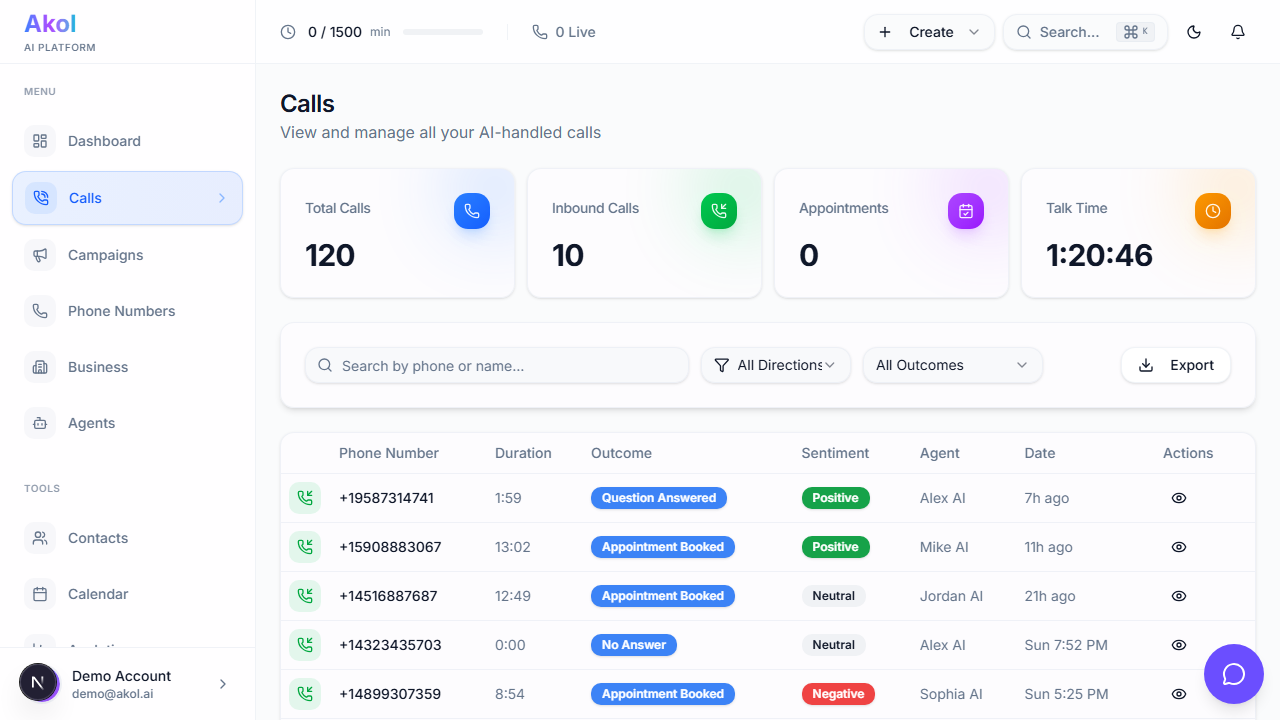
The export includes call details like phone number, duration, outcome, and summary. Great for creating reports or sharing with your team.
Tips
- Review calls daily during your first week — you’ll learn a lot about how your agent performs
- Use filters to focus on specific outcomes (like missed calls or negative sentiment)
- Export regularly if you need to keep records beyond your plan’s retention period