Slack
Connect Slack to get real-time notifications about your calls directly in your Slack workspace.
What It Does
- Call alerts — Get notified when a call starts
- Call summaries — Receive a detailed summary when a call ends
- Appointment alerts — Know immediately when an appointment is booked
- Custom alerts — Get notified about urgent calls or complaints
How to Connect
Open Integrations
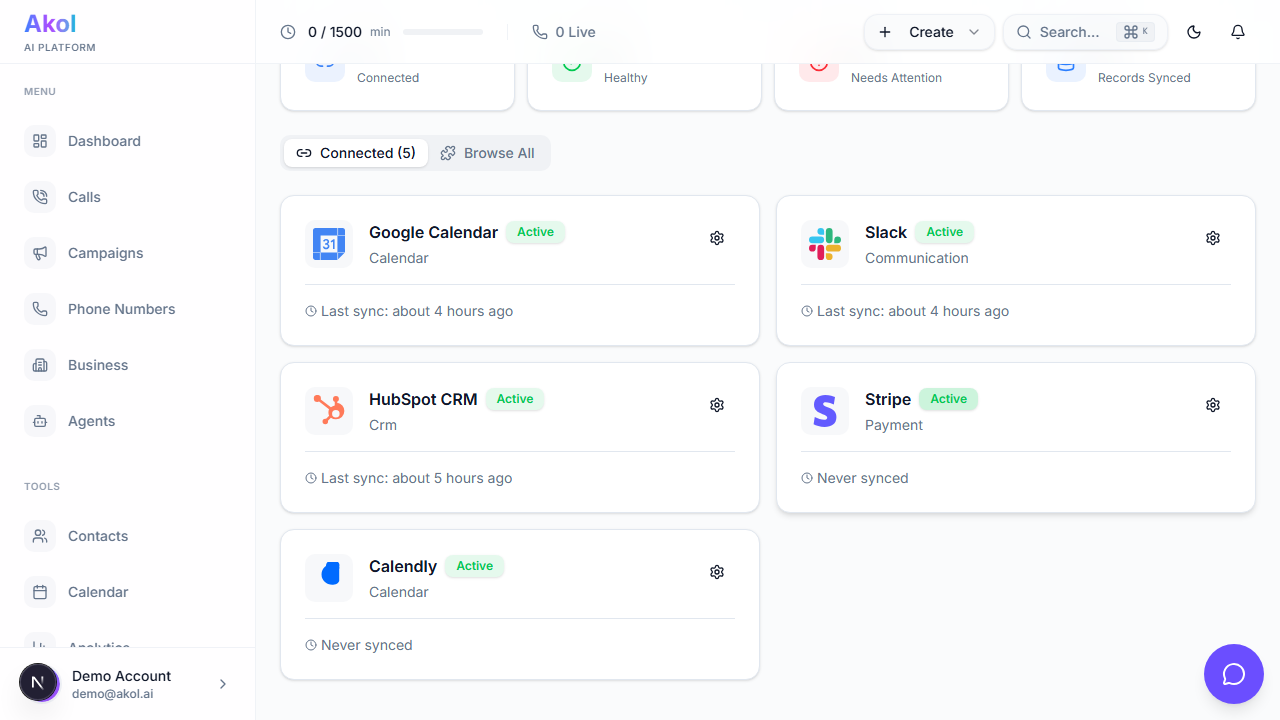
Go to Dashboard > Integrations and find Slack.
Click Connect
Click the Connect button. You’ll be redirected to Slack.
Choose Your Workspace
Select the Slack workspace where you want notifications.
Pick a Channel
Choose which channel should receive Akol notifications (you can change this later).
You’re Connected
Click Allow and you’ll be redirected back to Akol.

What Notifications Look Like
When a Call Starts
You’ll see a message like:
Incoming call
Caller: John Smith Phone: +1-555-123-4567 Agent: Sarah
Call started at 2:30 PM
When a Call Ends
You’ll get a full summary:
Call completed
Caller: John Smith Phone: +1-555-123-4567 Duration: 5 minutes Outcome: Appointment scheduled
Summary: Customer called to schedule a drain cleaning. Appointment booked for Tuesday at 2 PM.
When an Appointment is Booked
New appointment
Customer: John Smith Date: February 10, 2026 at 2:00 PM Service: Drain Cleaning
Settings
Choose Your Channel
- Go to Dashboard > Integrations > Slack
- Click Settings
- Select your preferred channel
- Click Save
We recommend creating a dedicated channel like #akol-calls to keep your notifications organized.
Choose Which Notifications to Receive
| Notification | What It Does | Default |
|---|---|---|
| Call started | Alert when a call begins | On |
| Call ended | Full summary when a call ends | On |
| Appointments | Alert when an appointment is booked | On |
| Urgent alerts | Alerts for complaints or urgent requests | On |
Troubleshooting
Not Receiving Notifications
- Check that the right channel is selected in settings
- If the channel is private, make sure the Akol bot has been invited (type
/invite @Akolin the channel) - Try disconnecting and reconnecting
Notifications Going to Wrong Channel
- Go to Dashboard > Integrations > Slack > Settings
- Select the correct channel
- Click Save
Connection Stopped Working
- Go to Dashboard > Integrations > Slack
- Click Disconnect
- Click Connect again and re-authorize
Tips
- Create a dedicated channel — Use something like
#akol-callsor#phone-calls - Add your team — Make sure everyone who needs to see call notifications is in the channel
- Use a private channel — For call data that should stay within your team