Zapier & Automation
Connect Akol to thousands of other apps using Zapier, Make, or other automation platforms.
What It Does
- Get notified anywhere — Send call data to Google Sheets, email, or any app
- Automate follow-ups — Automatically send emails or texts after calls
- Build workflows — Create multi-step automations triggered by calls
- Connect 5,000+ apps — Via Zapier, Make, and other platforms
How It Works
When something happens in Akol (like a call ending or an appointment being booked), Akol can send that information to Zapier, Make, or your own custom systems. From there, you can do anything with it.
Example automations:
| When This Happens | Do This |
|---|---|
| A call ends | Add a row to a Google Sheet |
| An appointment is booked | Send a confirmation email |
| A negative call occurs | Send an alert to your email |
| A call is transferred | Create a follow-up task |
Setting Up Zapier
Create a Zap in Zapier
- Go to zapier.com and create a new Zap
- For the trigger, choose Webhooks by Zapier
- Select Catch Hook
- Zapier will give you a webhook URL — copy it
Connect to Akol
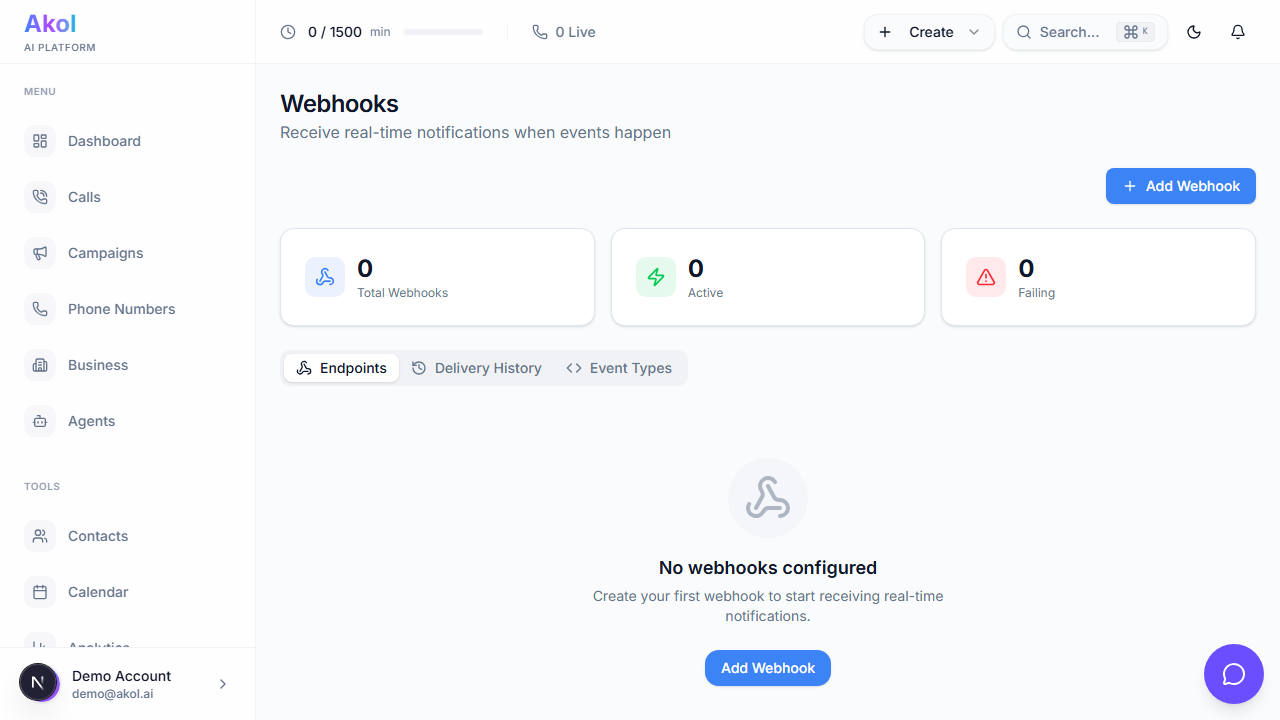
- Go to Dashboard > Integrations > Webhooks
- Click Add Webhook
- Paste the Zapier URL
- Choose which events to send (e.g., “Call ended”, “Appointment booked”)
- Click Create
Test It
- Make a test call to your Akol agent
- Go back to Zapier and check that the data came through
- Set up your action steps (e.g., add to Google Sheet, send email)
Setting Up Make (Integromat)
Create a Scenario in Make
- Go to make.com and create a new Scenario
- Add a Webhooks module → Custom webhook
- Copy the webhook URL
Connect to Akol
- Go to Dashboard > Integrations > Webhooks
- Click Add Webhook
- Paste the Make URL
- Choose which events to send
- Click Create
Test It
- Run the scenario once in Make
- Make a test call to capture the data structure
- Add your action modules
Events You Can Receive
| Event | When It Fires |
|---|---|
| Call started | A call begins |
| Call ended | A call finishes |
| Call transferred | A call is transferred to a person |
| Appointment booked | An appointment is scheduled |
| Transcript ready | The call transcript is available |
| Summary ready | The AI summary is generated |
What Data Is Sent
After a call ends, the information sent includes:
- Caller phone number and name (if captured)
- Call duration in seconds
- Outcome — appointment booked, message taken, transferred, etc.
- Sentiment — positive, neutral, or negative
- Summary — AI-generated summary of the conversation
- Transcript — full text of the conversation
Managing Your Webhooks
Go to Dashboard > Integrations > Webhooks to:
- Add a new webhook
- Pause a webhook without deleting it
- Test a webhook to make sure it’s working
- Delete a webhook you no longer need
- View logs to see delivery history
Troubleshooting
Zapier/Make Not Receiving Data
- Check that the webhook is active in Dashboard > Integrations > Webhooks
- Make sure you selected the right events
- Click Test to send a test event
- Check the webhook logs for any errors
Data Not Coming Through Correctly
- Check the webhook logs in Akol to see what was sent
- In Zapier/Make, re-map the data fields
- Make a new test call to get fresh data
Webhook Stopped Working
- Check the webhook status in your dashboard
- View the logs — if deliveries are failing, the receiving service may be down
- Try sending a test event
Tips
- Start simple — Try a basic “call ended → add to Google Sheet” automation first
- Use filters — In Zapier/Make, add filters to only trigger on specific outcomes (like appointments)
- Monitor your webhooks — Check the logs periodically to make sure everything is working
Last updated on